
iPhone Saying Storage Is Full and Asking You to Pay for More Storage? Try This First

Tech Made Simple

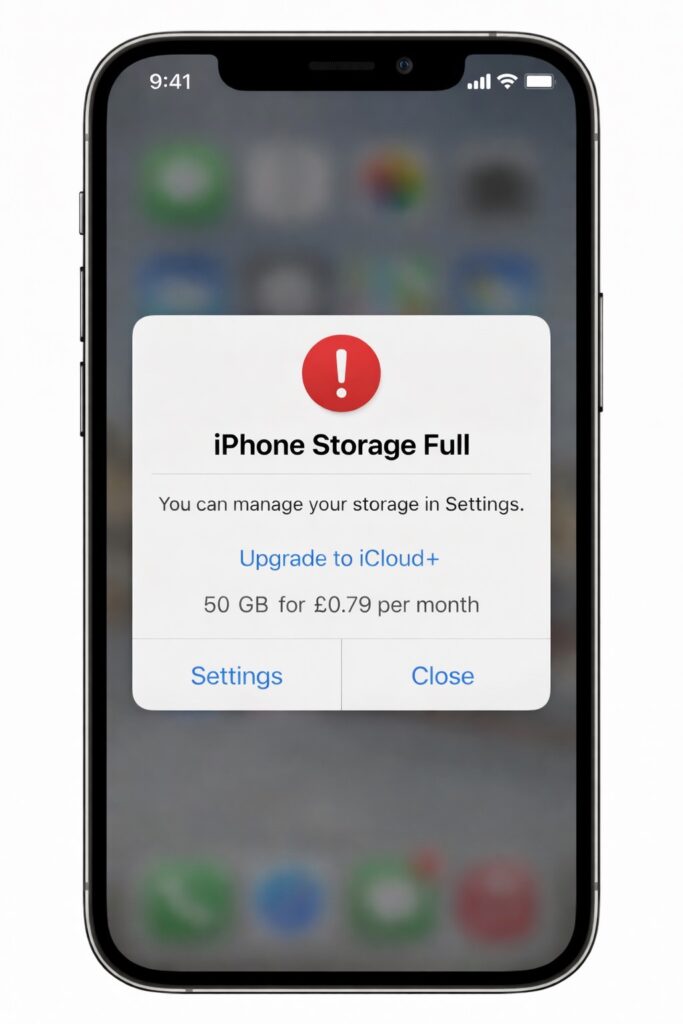
If your iPhone keeps telling you storage is full and nudging you to pay for more space, don’t panic — and definitely don’t pay just yet. In most cases, your phone is clogged up with stuff you don’t actually need, and you can free up a surprising amount of space in a few minutes.

Here are a few simple ways to clear storage without deleting everything or handing over more money.
1. Check What’s Eating Your Storage

Go to:

Settings → General → iPhone Storage

Give it a moment to load. This shows exactly what’s taking up space — for most people it’s photos, videos, WhatsApp, or apps they forgot they even had.

2. Clear Old Messages & Media

Messaging apps quietly store photos, videos, and voice notes forever.

  • Open Messages or WhatsApp
  • Check chats with lots of media
  • Delete old videos and voice notes you don’t need

This alone can free up a lot of space.

3. Offload Apps You Don’t Use

Your iPhone can remove unused apps but keep your data.

Go to:

Settings → General → iPhone Storage → Enable “Offload Unused Apps”

You can reinstall them anytime without losing anything.

4. Photos: The Big One

If photos are the main problem:

  • Turn on iCloud Photos (if you use it)
  • Enable Optimise iPhone Storage

This keeps full-quality photos in the cloud and smaller versions on your phone.

5. Restart Your Phone (Seriously)

It sounds obvious, but restarting can clear cached junk and make storage recalculate properly.


Quick tip:

If your phone is constantly full, it might be time to move photos to cloud storage or a computer. iPhones aren’t meant to hold everything forever.
How to Download and Set a Wallpaper on Your Phone (Properly)

Making tech simple

What is a wallpaper, anyway?

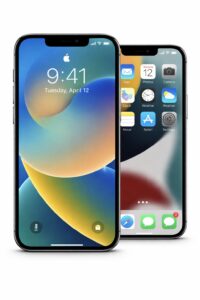
A wallpaper is the background image on your phone.

It’s the picture you see:

  • on your lock screen (when your phone is locked)
  • and/or on your home screen (behind your apps)

Most phones come with boring default wallpapers.

The good news is: you can change them — to anything you like.

That means:

  • your phone looks better
  • it feels more “yours”
  • and it’s one of the easiest customisations you can make

No tech knowledge required.


Why bother changing your wallpaper?

A good wallpaper can:

  • make your phone look cleaner
  • make text easier to read
  • show off something you like (art, humour, attitude)
  • just make you smile when you unlock your phone

There’s no downside.

If you don’t like it, you can change it again in 10 seconds.

Step 1: Download the wallpaper (very simply)

When you see a wallpaper image on this site:

On iPhone

  1. Tap the image
  2. Tap Save to Photos

That’s it.

The image is now stored in your Photos app on your phone.


On Android

  1. Tap and hold the image
  2. Tap Download image or Save image

That’s it.

The image is now stored in your Gallery or Photos app.

You can now use it as your wallpaper.


Step 2: Set it as your wallpaper (iPhone)

  1. Open the Photos app
  2. Find the wallpaper you just saved
  3. Tap the share icon (square with an arrow)
  4. Tap Use as Wallpaper
  5. Choose:
    • Lock Screen
    • Home Screen
    • or Both
  6. Adjust it if needed, then set

Done.


Step 3: Set it as your wallpaper (Android)

  1. Open your Gallery or Photos app
  2. Open the wallpaper image
  3. Tap the three dots or menu
  4. Tap Set as wallpaper
  5. Choose where you want it:
    • Lock screen
    • Home screen
    • or Both

Done.


Don’t worry if you mess it up

You can’t break anything by changing your wallpaper.

If it looks wrong:

  • zoom it
  • move it
  • or pick a different one

You can always go back to your old wallpaper.


Our first wallpapers

Below is our first free to download phone wallpapers

Tap the image you want. Save it to your phone. Try it as your wallpaper.

If you like it — great.

If not — more are coming.

This is just the start.

Enjoy!